How to Integrate Calendly in a Next.js App (App Router + TypeScript)
A complete guide to embedding Calendly in Next.js — configure your event, build a typed CalendlyEmbed component, use environment variables, and add a Book a 15-min call section to your site.
Faisal Khawaj
Author
If you run a portfolio, agency site, or freelance landing page, you want leads to book a call without leaving your website. Calendly handles scheduling; Next.js handles everything else. This guide walks through the full integration using the App Router, TypeScript, and an inline embed — the same pattern used on this site.
What you'll build
By the end of this guide you'll have:
- A Calendly event configured for intro calls (15 or 30 minutes)
- A reusable
CalendlyEmbedclient component - Your event URL stored in an environment variable
- A contact section with Book a 15-min call that scrolls to the embed
- Typed helpers so Calendly URLs aren't hard-coded across the app
Prerequisites
- A Calendly account (free tier works)
- A Next.js project (App Router) with TypeScript
- Basic familiarity with React client components and
.envfiles
This guide targets Next.js 14+ App Router. If you use the Pages Router, the component code is the same — only the file paths differ (
pages/vsapp/).
Step 1 — Configure your Calendly event
When you create a Calendly account, you get a default 30 Minute Meeting event. For portfolio and freelance sites, a 15-minute intro call converts better — it's a low-commitment first step.
Event types dashboard
Open Scheduling → Event types. You'll see your profile and any existing events:
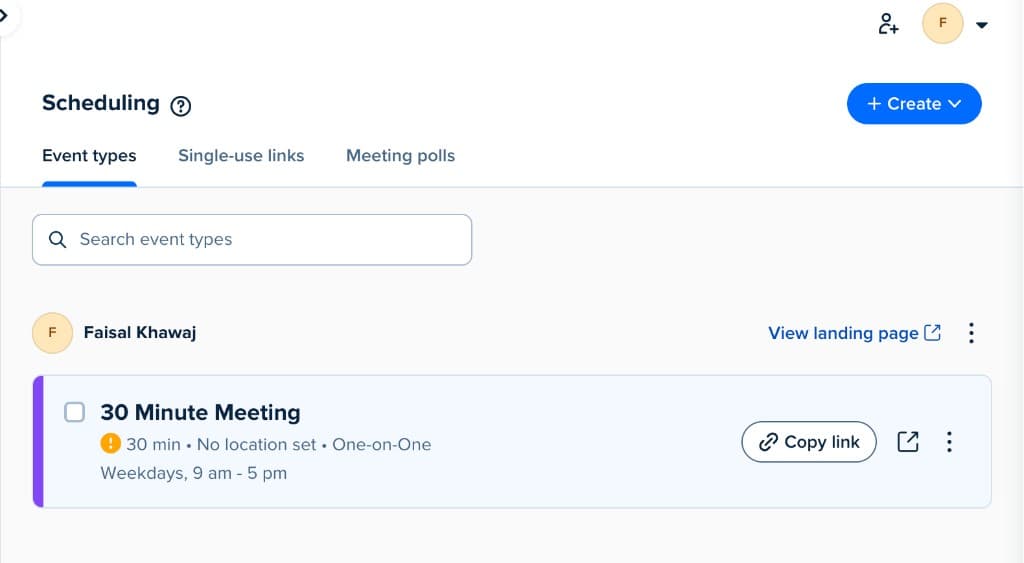
Change the duration
- Click the ⋮ menu on your event card
- Select Edit
- Open the Duration dropdown
- Choose 15 min (or keep 30 min if you prefer)
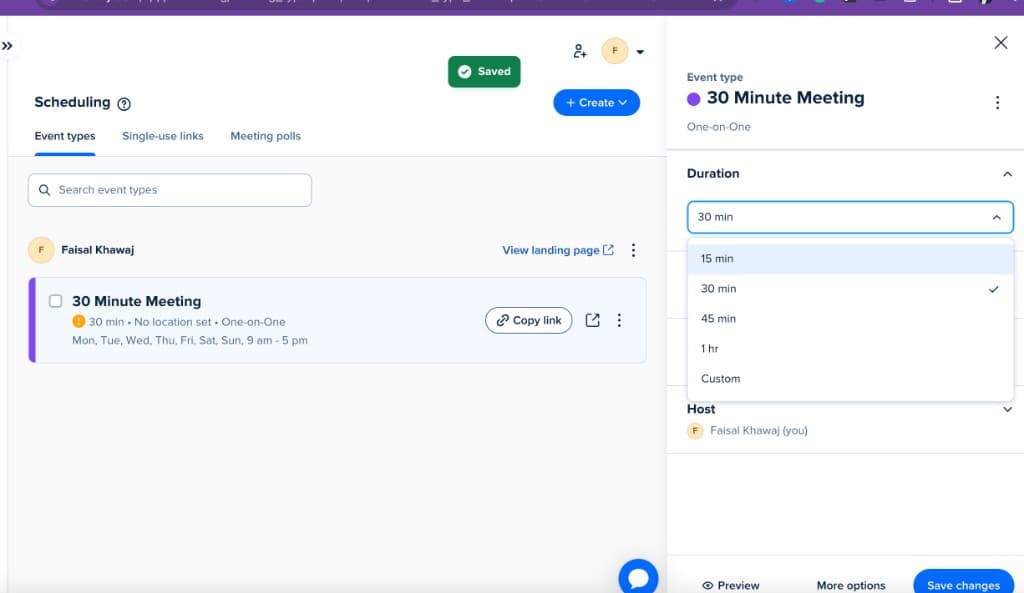
Click Save changes.
Other settings worth configuring
| Setting | Recommendation |
|---|---|
| Location | Google Meet, Zoom, or phone — don't leave "No location set" |
| Availability | Match your real timezone and working hours |
| Event name | 15-min intro call or Project discovery call |
| Description | What the call covers and what to prepare |
Get your event link
From the event card menu you can:
- Copy link — the URL you'll embed
- Add to website — Calendly's embed snippet (we'll build a better Next.js version)
- View booking page — preview what clients see
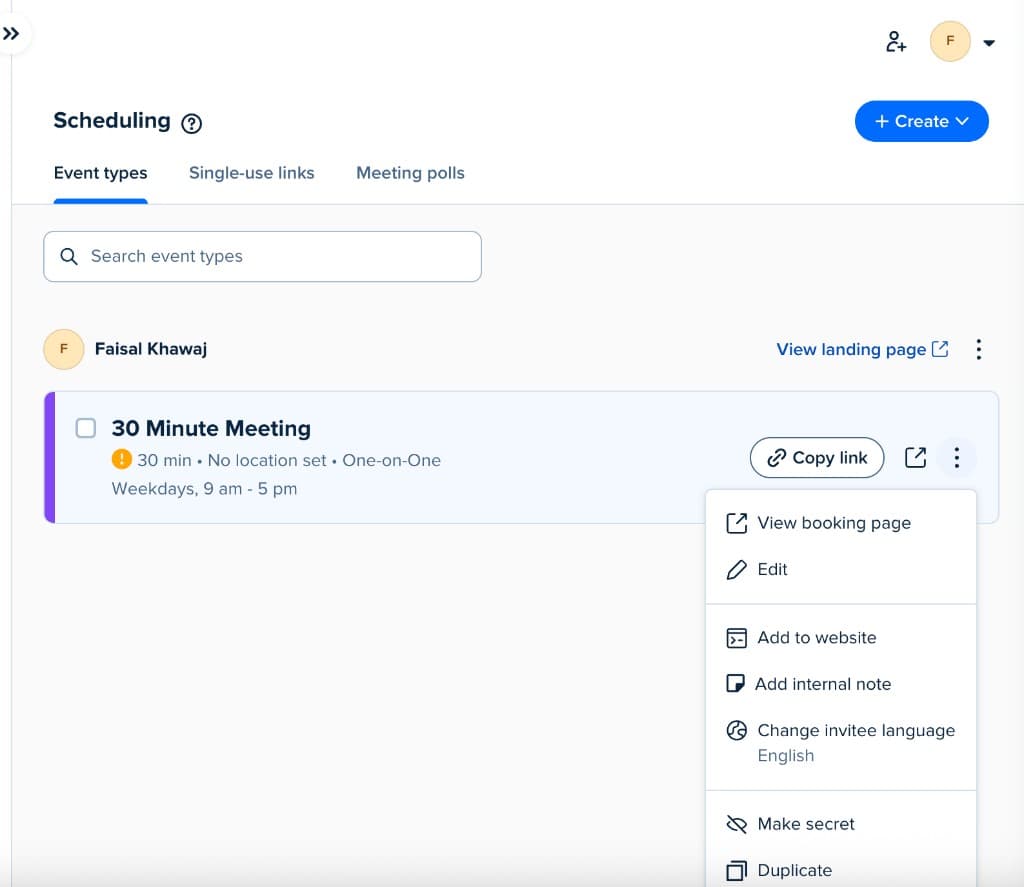
Your link will look like:
https://calendly.com/your-username/30minRename the event slug in Calendly settings if you want something cleaner like /intro-call.
Step 2 — Store the URL in an environment variable
Never hard-code your Calendly URL in components. Use a public env var so you can change it per environment (local, preview, production).
.env.local
NEXT_PUBLIC_CALENDLY_URL=https://calendly.com/your-username/intro-callsrc/lib/links.ts
/**
 * 15-minute intro call — set NEXT_PUBLIC_CALENDLY_URL in .env
 */
export const CALENDLY_URL: string =
  process.env.NEXT_PUBLIC_CALENDLY_URL ?? "";
Add the same variable in Vercel → Settings → Environment Variables and redeploy.
Only variables prefixed with
NEXT_PUBLIC_are available in client components. Calendly's embed runs in the browser, so this prefix is required.
Step 3 — Create a typed Calendly embed component
Calendly's inline embed needs two things:
- A
divwith classcalendly-inline-widgetand adata-urlattribute - Calendly's external widget script
In Next.js, load the script with next/script instead of manually appending to <head> in useEffect. That plays nicely with React, avoids duplicate script tags, and supports lazy loading.
src/components/CalendlyEmbed.tsx
"use client";

import Script from "next/script";

type CalendlyEmbedProps = {
  /** Full Calendly event URL, e.g. https://calendly.com/you/intro-call */
  url: string;
  /** Widget height in pixels */
  height?: number;
  /** Brand accent color without # — passed to Calendly */
  primaryColor?: string;
};

export default function CalendlyEmbed({
  url,
  height = 700,
  primaryColor = "0069ff",
}: CalendlyEmbedProps) {
  if (!url) return null;

  const embedUrl = new URL(url);
  embedUrl.searchParams.set("hide_gdpr_banner", "1");
  embedUrl.searchParams.set("primary_color", primaryColor.replace("#", ""));

  return (
    <>
      <div
        className="calendly-inline-widget w-full min-w-0"
        data-url={embedUrl.toString()}
        style={{ minWidth: "280px", height: `${height}px` }}
      />
      <Script
        src="https://assets.calendly.com/assets/external/widget.js"
        strategy="lazyOnload"
      />
    </>
  );
}
Why "use client"?
The Calendly widget attaches to the DOM at runtime. This component must be a client component. Parent pages and layouts can remain server components.
Script loading strategies
| Strategy | When to use |
|---|---|
lazyOnload | Embed below the fold (contact section) — recommended |
afterInteractive | Embed near the top of the page |
beforeInteractive | Rare — only if scheduling is the primary page purpose |
Step 4 — Wire it to your env config
Create a thin wrapper so pages don't repeat env logic:
src/components/CalendlySection.tsx
import CalendlyEmbed from "@/components/CalendlyEmbed";
import { CALENDLY_URL } from "@/lib/links";
export default function CalendlySection() {
if (!CALENDLY_URL) return null;
return (
<section id="calendly" className="scroll-mt-28">
<h2 className="text-2xl font-semibold">Book a 15-min intro call</h2>
<p className="mt-2 text-muted-foreground">
Pick a time that works for you. We'll discuss your project, timeline,
and fit — no pressure.
</p>
<div className="mt-6">
<CalendlyEmbed url={CALENDLY_URL} primaryColor="efff00" />
</div>
</section>
);
}Use this in your contact page or homepage:
app/contact/page.tsx (or inside an existing contact section)
import CalendlySection from "@/components/CalendlySection";

export default function ContactPage() {
  return (
    <main>
      {/* email, WhatsApp, etc. */}
      <CalendlySection />
    </main>
  );
}
Step 5 — Add a CTA button that scrolls to the embed
Link buttons to #calendly so users jump straight to the scheduler:
import { CALENDLY_URL } from "@/lib/links";

export function BookCallButton() {
  if (!CALENDLY_URL) {
    return (
      <a href="mailto:you@example.com">Start a project</a>
    );
  }

  return (
    <a href="#calendly">Book a 15-min call</a>
  );
}
Place this in your hero, navbar, or contact section. If CALENDLY_URL is missing, fall back to email so the button never leads nowhere.
Step 6 — Optional: popup widget instead of inline
For a floating "Schedule" button, use Calendly's popup API:
src/lib/calendly.ts
declare global {
  interface Window {
    Calendly?: {
      initPopupWidget: (options: { url: string }) => void;
    };
  }
}

export function openCalendlyPopup(url: string): void {
  if (typeof window === "undefined") return;
  window.Calendly?.initPopupWidget({ url });
}
Usage in a client component (after the widget script has loaded):
"use client";

import { CALENDLY_URL } from "@/lib/links";
import { openCalendlyPopup } from "@/lib/calendly";

export function SchedulePopupButton() {
  if (!CALENDLY_URL) return null;

  return (
    <button type="button" onClick={() => openCalendlyPopup(CALENDLY_URL)}>
      Schedule a call
    </button>
  );
}
Load the same widget.js script once via next/script in your layout or embed component.
| Approach | Best for |
|---|---|
| Inline embed | Contact page, dedicated booking section |
| Popup widget | Floating CTA, minimal pages |
| Link to Calendly | Simplest — but users leave your site |
Inline embed keeps visitors on your domain and looks more professional.
Step 7 — Style the embed to match your site
Calendly's iframe has limited styling, but you can:
- Wrap it in a bordered container matching your design system
- Pass
primary_colorin the query string (hex without#) - Set a fixed height — 650–750px works well for inline widgets
- Use
scroll-mt-28on the section so anchor links don't hide the title behind a sticky navbar
<div className="overflow-hidden rounded-lg border border-gray-800">
  <CalendlyEmbed url={CALENDLY_URL} height={700} primaryColor="efff00" />
</div>
App Router file structure
src/
├── app/
│   ├── layout.tsx
│   └── (site)/
│       ├── page.tsx              # homepage with #calendly CTA
│       └── contact/page.tsx      # optional dedicated page
├── components/
│   ├── CalendlyEmbed.tsx         # client — widget + script
│   └── CalendlySection.tsx       # server — section wrapper
└── lib/
    ├── links.ts                  # CALENDLY_URL from env
    └── calendly.ts               # optional popup helper
Troubleshooting
| Problem | Fix |
|---|---|
| Widget shows blank box | Confirm NEXT_PUBLIC_CALENDLY_URL is set and you redeployed after adding it |
| Script loads but no calendar | Check the URL in a browser — event must be active, not secret |
| Widget loads on every page visit | Use strategy="lazyOnload" — don't import the embed in root layout unless needed globally |
| Duplicate scrollbars | Set explicit height on the widget div |
| GDPR banner inside widget | Add hide_gdpr_banner=1 to the URL (shown in component above) |
TypeScript errors on window.Calendly | Use the declare global block in calendly.ts |
| Works locally, not on Vercel | Add env var in Vercel dashboard for Production and Preview |
SEO and performance notes
- The Calendly iframe loads third-party JavaScript — keep it on contact/booking pages only, not every route
- Use
lazyOnloadso it doesn't block LCP on your homepage - Your booking page should still have proper
<title>and meta description via Next.jsmetadataexport - Calendly pages on
calendly.comare indexed separately — your embed keeps users on your domain
Checklist
- Calendly event created and duration set (15 or 30 min)
- Location and availability configured
- Event link copied
-
NEXT_PUBLIC_CALENDLY_URLin.env.localand Vercel -
CalendlyEmbed.tsxclient component created - Contact section with
#calendlyanchor - CTA buttons on hero / nav
- Tested on mobile (Calendly is responsive inside the iframe)
FAQ: Calendly + Next.js
How do I embed Calendly in the App Router?
Use a client component with a calendly-inline-widget container and load widget.js via next/script. Keep the event URL in NEXT_PUBLIC_CALENDLY_URL.
lazyOnload or afterInteractive?
lazyOnload for below-the-fold contact embeds. afterInteractive if booking is near the top. Don’t put Calendly in the root layout on every page.
Widget blank on Vercel?
Add NEXT_PUBLIC_CALENDLY_URL in Vercel for Production (and Preview), then redeploy — public env vars are baked in at build time.
Wrapping up
Integrating Calendly into Next.js comes down to three pieces: a configured event, an environment variable, and a client component that loads Calendly's script with next/script. Skip the useEffect + manual <script> injection pattern — next/script is cleaner, typed, and avoids hydration edge cases.
Once live, pair your scheduler with email and WhatsApp so international clients can reach you however they prefer.
- Offline-First React Native: SQLite, MMKV, Sync Queue & NetInfo
- Multi-Environment Setup for React Native CLI
Need help shipping a Next.js site with booking, contact flows, and production polish? Schedule a call or Send a message.